

 De
De  Es
Es  Fr
Fr  En
En 

Registro da Plataforma nanoCAD – Guia de Ativação
Registro
Após a instalação do nanoCAD, o Assistente de Registro será iniciado.
- Se você precisar obter um arquivo de licença, escolha a opção Inserir o número de série para obter um arquivo de licença.
- Se você recebeu o arquivo de licença e precisa ativá-lo, escolha a opção Ativar arquivo de licença manualmente .
- Se você usar uma licença de rede e o Servidor de Licenças estiver instalado e em execução, escolha a opção Conectar ao Servidor de Licenças. Caso contrário, feche o Assistente de Registro: você deve instalar o Servidor de Licenças primeiro.
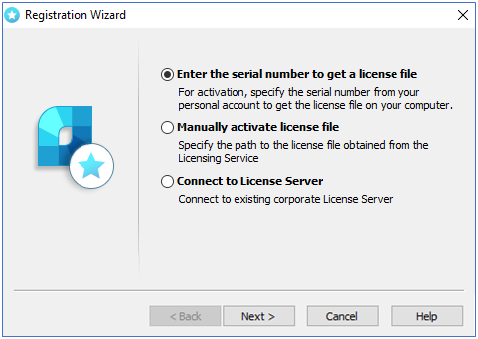
Insira o número de série para obter um arquivo de licença
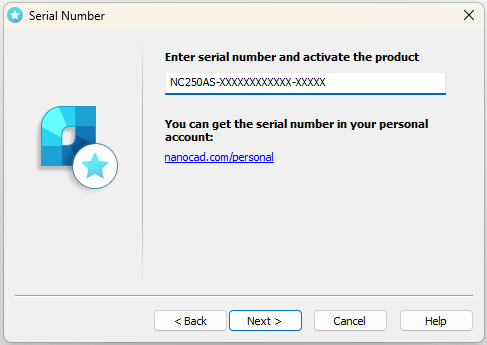
If you have serial number, enter it in the field and click Next. The User Authentication window will be opened.Otherwise click on nanocad.com/personal link. You will be redirected to www.nanocad.com website. Follow site instruction for getting serial number, then start Registration Wizard again to activate your license.
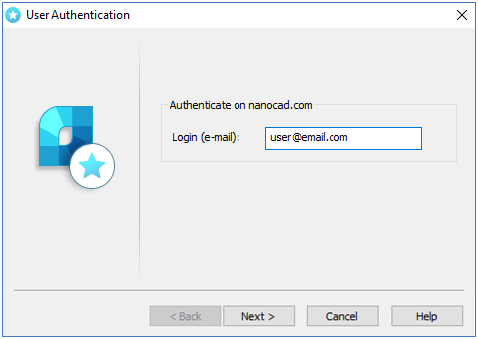
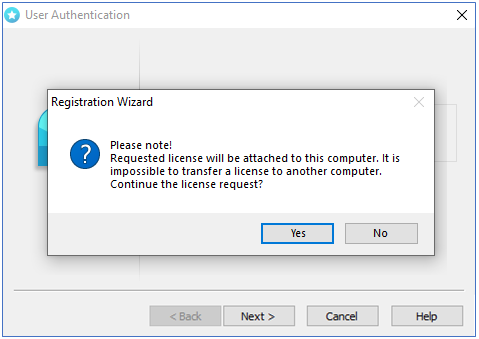
Solicitar arquivo de licença on-line
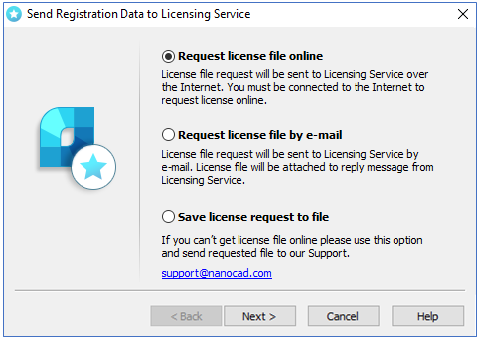
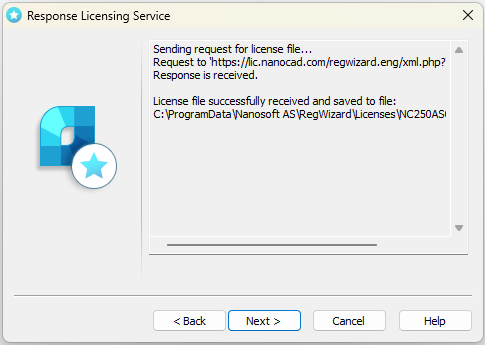
The result of an online license request may be:
- arquivo de licença recebido com sucesso;
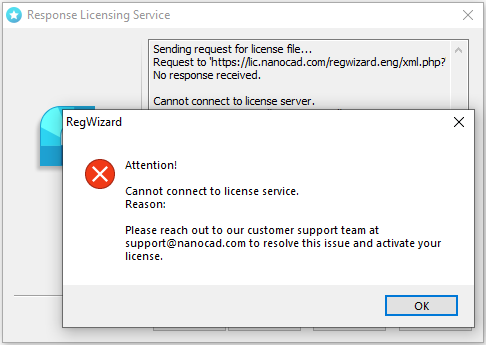
- falha na solicitação do arquivo de licença.
- falha na conexão com o Servidor de Licenciamento.
If the product was successfully activated, click Next, then Finish.
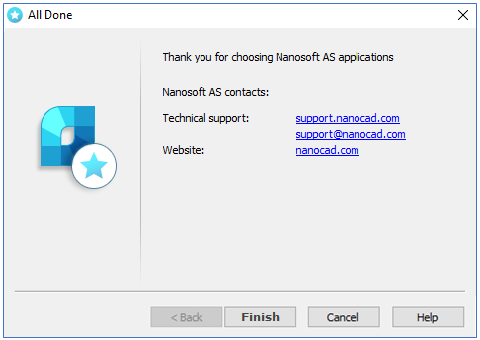
Congratulations! License file successfully received. Product is activated.
In case if you don’t have Internet connection or you get failed connection error, request license file in another way as it’s described further.
Solicitar arquivo de licença por e-mail
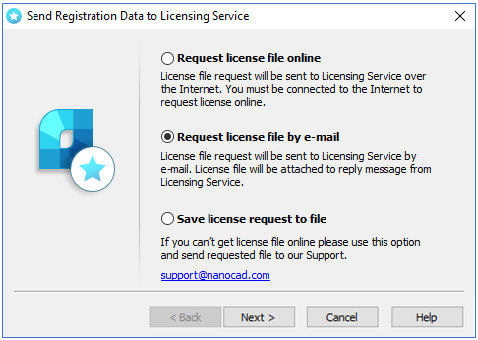
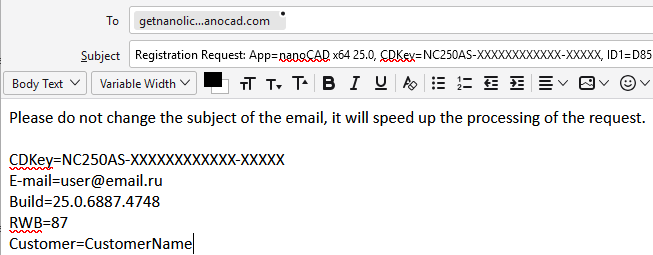
It is possible to get license file by e-mail. Choose this option in Send Registration Data to Licensing Server window of the Registration Wizard. Email will be generated automatically; you should send it. Please do not edit the message just send it as it is.
Salvar solicitação de licença no arquivo
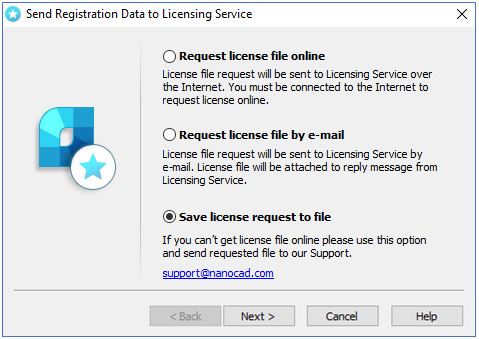
Send this file to your support manager, then you will get the license file and further instructions.
Ativar manualmente o arquivo de licença
Caso você tenha recebido o arquivo de licença, deve ativá-lo. Salve este arquivo no computador. Inicie o Assistente de Registro, escolha a opção Ativar arquivo de licença manualmente:
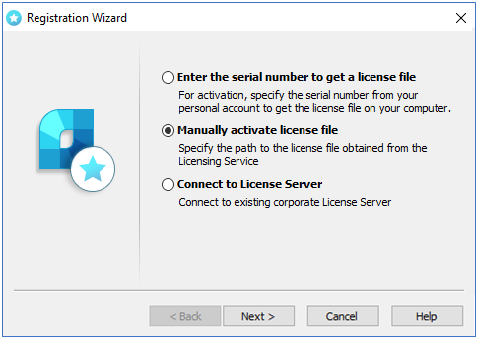
Local do arquivo de licença
Clique em Procurar para especificar o local do arquivo de licença.
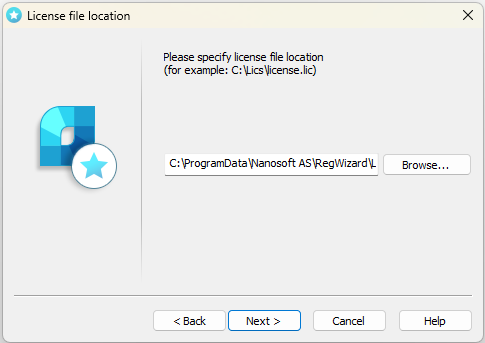
Clique em Avançar.
Se a licença escolhida não corresponder ao produto atual, você receberá a mensagem:
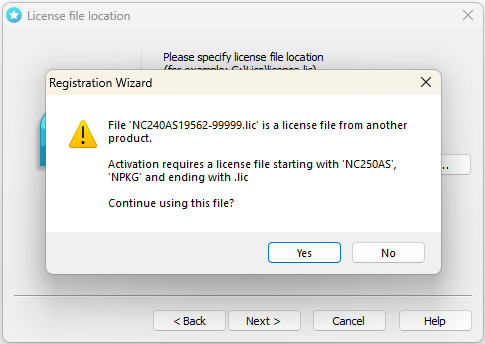
Clique em Não e selecione a licença adequada.
Parabéns! Arquivo de licença recebido com sucesso. Produto ativado.